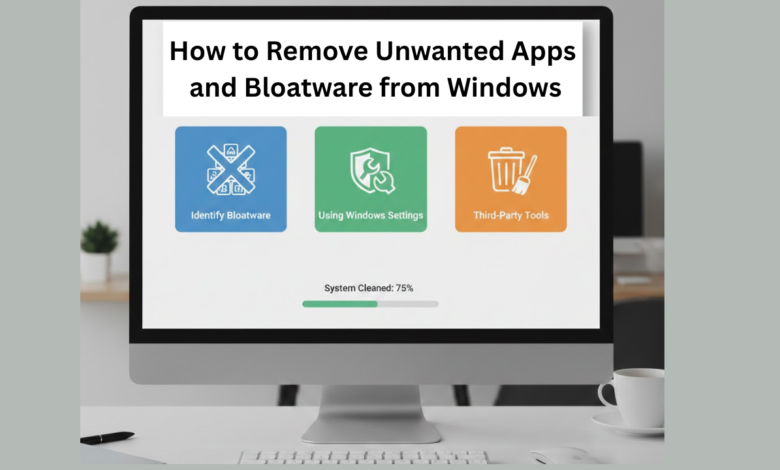
How to Remove Unwanted Apps and Bloatware from Windows
Remove Unwanted Apps and Bloatware from Windows

Most Windows laptops and PCs come preloaded with unnecessary apps, trial software, and background services. These unwanted programs consume storage, slow down performance, and sometimes even reduce battery life. Many users are unaware that these apps can be safely removed. That’s why learning how to remove unwanted apps and bloatware from Windows is essential for improving speed, responsiveness, and overall system health. This guide explains easy, safe, and effective ways to clean your Windows system without breaking anything.
What Are Unwanted Apps and Bloatware?
Before understanding how to remove unwanted apps and bloatware from Windows, it’s important to know what they are.
Unwanted Apps
- Apps you never installed intentionally
- Games, ads, or tools you don’t use
- Background utilities that run silently
Bloatware
- Pre-installed manufacturer apps
- Trial antivirus software
- Shopping or promotion apps
- Duplicate system tools
These programs are usually unnecessary for daily use.
Why You Should Remove Bloatware from Windows
Removing bloatware offers multiple benefits:
- Faster system startup
- Improved overall performance
- More free storage space
- Better battery life
- Reduced background CPU usage
- Cleaner and clutter-free system
That’s why knowing how to remove unwanted apps and bloatware from Windows is extremely useful for every Windows user.
Method 1: Uninstall Apps Using Windows Settings
This is the safest and easiest method.
Steps:
- Open Settings
- Click Apps
- Select Installed Apps / Apps & Features
- Scroll through the list
- Click the unwanted app
- Select Uninstall
Remove apps you don’t recognize or use, such as games, trials, or promotional software.
Method 2: Remove Pre-Installed Windows Apps
Windows includes default apps that many users never use.
Common removable apps
- Xbox apps
- News
- Weather
- People
- Skype (if unused)
Some apps can be uninstalled directly from Settings, while others require PowerShell.
Method 3: Remove Bloatware Using PowerShell (Advanced)
PowerShell allows deeper cleanup. This method is powerful but safe if used correctly.
How to use PowerShell
- Press Windows + X
- Select Windows Terminal (Admin)
- Use commands to remove apps
This method is effective when learning how to remove unwanted apps and bloatware from Windows, but it should be used carefully.
Method 4: Disable Startup Apps
Some unwanted apps start automatically and slow down boot time.
Steps:
- Press Ctrl + Shift + Esc
- Open Startup Apps
- Disable unnecessary apps
Disabling startup apps improves boot speed instantly.
Method 5: Remove Manufacturer Bloatware
Laptop brands often install their own apps.
Examples
- HP Support Assistant
- Dell Support Tools
- Lenovo Utility Apps
If you don’t use these tools, uninstalling them helps free resources.
Method 6: Use Third-Party Bloatware Removal Tools
Several trusted tools can automate the cleanup process.
Popular tools
- CCleaner
- O&O AppBuster
- Bloatbox
These tools provide user-friendly interfaces and are helpful for beginners.
Method 7: Turn Off Background Apps
Even if apps are not opened, they may run in the background.
Steps:
- Go to Settings
- Select Apps
- Choose Background App Permissions
- Set unnecessary apps to Never
This reduces CPU and memory usage.
Method 8: Remove Browser Extensions and Add-ons
Browser add-ons also count as unwanted software.
Check and remove
- Chrome extensions
- Edge add-ons
- Toolbars
Removing unnecessary extensions improves browsing speed and security.
Method 9: Clean Temporary Files
Temporary files take unnecessary space.
Steps:
- Open Settings
- Go to System → Storage
- Click Temporary Files
- Select and delete
This method works well alongside how to remove unwanted apps and bloatware from Windows.
Method 10: Reset Windows Apps (Optional)
If Windows feels cluttered, resetting default apps can help.
When to use
- Apps crash frequently
- Settings feel broken
- Performance is inconsistent
This restores apps to a clean state without reinstalling Windows.
What Apps You Should NOT Remove
Be careful not to uninstall critical system apps:
- Microsoft Store
- Windows Security
- Device drivers
- .NET Framework components
Removing essential apps may cause system instability.
FAQs – How to Remove Unwanted Apps and Bloatware from Windows
1. Is it safe to remove bloatware from Windows?
Yes, as long as you avoid removing essential system apps.
2. Will removing apps speed up my PC?
Yes, fewer background apps mean better performance.
3. Can I reinstall removed apps later?
Yes, most apps can be reinstalled from the Microsoft Store.
4. Do third-party removal tools work?
Yes, trusted tools are safe and effective.
5. How often should I clean unwanted apps?
Every few months or after major Windows updates.
Conclusion
Learning how to remove unwanted apps and bloatware from Windows is one of the easiest ways to improve system performance without spending money. By uninstalling unnecessary apps, disabling startup programs, and cleaning background processes, your Windows PC becomes faster, cleaner, and more responsive. Regular maintenance and careful app management ensure long-term performance and stability.