How to Use an External GPU (eGPU) with Your Laptop
Use an External GPU (eGPU) with Your Laptop

If you want powerful desktop-level performance on a portable device, understanding how to use an external GPU (eGPU) with your laptop is one of the best upgrades you can make. An eGPU allows you to connect a full-size graphics card to your laptop, dramatically increasing gaming FPS, video editing speed, rendering performance, and productivity. Since many thin and light laptops lack strong built-in GPUs, an eGPU becomes a perfect solution for users who need extra power.
What Is an External GPU (eGPU)?
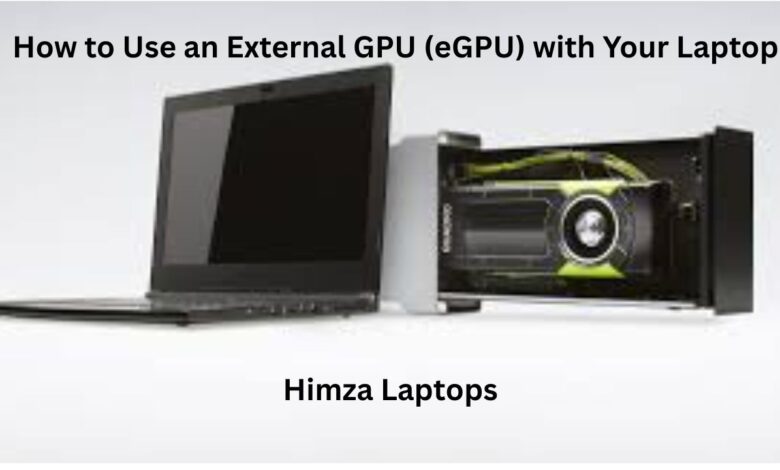
An external GPU is a separate enclosure that houses a desktop graphics card and connects to your laptop via Thunderbolt 3, Thunderbolt 4, or USB-C. The enclosure includes:
- GPU housing
- Cooling system
- Power supply
- PCIe connection
By learning how to use an external GPU (eGPU) with your laptop, you can transform your everyday device into a powerful gaming or editing machine.
Benefits of Using an eGPU with a Laptop
Using an eGPU brings several advantages:
Significantly Higher Graphics Performance
Great for gaming, 3D modelling, and editing.
Desktop GPU Upgrade Flexibility
You can upgrade the GPU anytime.
Keeps Laptop Lightweight
Portable for travel, powerful at home.
Extends Laptop Lifespan
Reduces internal GPU load and heat.
Because of these benefits, more people are searching for how to use an external GPU (eGPU) with their laptop to get better performance without buying a new machine.
What You Need Before Connecting an eGPU
To learn how to use an external GPU (eGPU) with your laptop, you must have the right hardware:
1. A Laptop with Thunderbolt 3 or Thunderbolt 4
These ports provide the required bandwidth for GPU data transfer.
Look for the lightning bolt symbol.
2. An eGPU Enclosure
Popular options include:
- Razer Core X
- Sonnet eGPU Breakaway Box
- Akitio Node Titan
Make sure the enclosure supports full-size GPUs.
3. A Compatible Desktop GPU
Choose NVIDIA or AMD depending on your workload:
- NVIDIA RTX Series → Best for gaming, AI tools, video editing.
- AMD Radeon RX Series → Great for creators and raw compute performance.
4. A High-Quality Thunderbolt Cable
A poor cable reduces performance or may not connect at all.
How to Use an External GPU (eGPU) with Your Laptop (Step-by-Step)
Now let’s dive into the main process. These steps explain how to use an external GPU (eGPU) with your laptop correctly for the best results.
Step 1: Insert the GPU into the eGPU Enclosure
- Open the enclosure panel.
- Align the GPU with the PCIe slot.
- Firmly push until it locks.
- Tighten the screws to secure it.
This step completes the physical installation.
Step 2: Connect Power to the eGPU
The enclosure usually has a built-in power supply. Simply plug the PSU cable into a power outlet.
Make sure the GPU power connectors are also attached.
Step 3: Connect the eGPU to Your Laptop
Using a Thunderbolt cable:
- Plug one end into the enclosure.
- Plug the other end into your laptop.
- Wait for your laptop to recognise the device.
To successfully learn how to use an external GPU (eGPU) with your laptop, this connection must be secure and direct.
Step 4: Install GPU Drivers
Depending on your GPU type:
- NVIDIA Users: Download drivers from: https://www.nvidia.com/drivers
- AMD Users: Download drivers from: https://www.amd.com/en/support
After installing, restart the laptop.
Step 5: Set the eGPU as the Primary Graphics Processor
On Windows:
- Open Settings → Display → Graphics
- Choose the app or game
- Set High Performance (External GPU)
On macOS (limited support):
- Works only with AMD GPUs
- macOS auto-selects eGPU for supported apps
This ensures your apps actually use the external GPU.
Step 6: Connect an External Monitor (Optional but Recommended)
Although not required, using an external display gives you:
- Higher FPS
- Lower latency
- Better GPU utilisation
Performance Tips for Best eGPU Results
To maximise performance while learning how to use an external GPU (eGPU) with your laptop, follow these tips:
1. Always use the latest GPU drivers
They improve stability and performance.
2. Prefer Thunderbolt 4 if available
It offers better bandwidth than older ports.
3. Avoid adapters
Connecting USB-C → HDMI → Thunderbolt won’t work.
Use a direct Thunderbolt cable only.
4. Keep your eGPU enclosure cool
Better airflow = better GPU performance.
5. Use an external monitor
It removes bandwidth bottlenecks.
Troubleshooting: eGPU Not Working?
Even if you know how to use an external GPU (eGPU) with your laptop, issues can arise. Try:
Check Thunderbolt security settings in BIOS
Enable “Thunderbolt Boot Support” or “External PCIe”.
Reinstall GPU drivers
A clean install fixes most issues.
Plug the cable directly into the laptop
Avoid dongles and hubs.
Update laptop BIOS
New firmware improves Thunderbolt compatibility.
Try a different Thunderbolt port
Some laptops route only one port to the high-speed controller.
FAQs – How to Use an External GPU (eGPU) with Your Laptop
1. Can any laptop use an eGPU?
No. Your laptop must have Thunderbolt 3 or Thunderbolt 4. Regular USB-C ports do not support eGPUs.
2. Does an eGPU improve gaming FPS?
Yes. You can see a 2× to 5× increase depending on the GPU and monitor setup.
3. Can I use an eGPU with macOS?
Yes, but macOS only supports AMD GPUs and certain eGPU enclosures.
4. Is it safe to use an eGPU every day?
Absolutely. eGPUs are designed for long-term usage as long as the enclosure is well-cooled.
5. Does an eGPU work without an external monitor?
Yes, but performance is slightly lower. An external monitor gives better FPS.
6. Can I upgrade the GPU later?
Yes. Just open the enclosure and replace the graphics card.
Conclusion
Learning how to use an external GPU (eGPU) with your laptop is one of the smartest ways to unlock desktop-class performance without buying a new system. With the right enclosure, a compatible GPU, and proper setup, your laptop becomes a powerful workstation for gaming, editing, and productivity. Always ensure drivers are updated, use the correct ports, and optimise your GPU settings for the best results.