In today’s digital world, laptops have become essential devices for work, study, entertainment, and everyday communication. Because of this continuous use, batteries are often kept plugged in for long hours. However, many users still don’t fully understand how to protect their laptops from overcharging, even though battery health directly affects performance, lifespan, and efficiency. In this detailed guide, you will learn everything you need to know about laptop overcharging protection, best practices for healthy charging habits, and expert steps to keep your battery safe for years.
Why Overcharging Matters More Than You Think
Modern laptops come with smart charging circuits, meaning they technically stop charging once the battery reaches 100%. But this does NOT fully eliminate the risk. Staying plugged in keeps the battery at maximum voltage, which increases heat and accelerates chemical aging. Over time, this reduces capacity, causes faster battery drain, and may even damage the internal components.
Understanding how to protect your laptop from overcharging is therefore essential, not just for battery life but for overall system health.
How Lithium-Ion Batteries Work
Before learning how to protect your laptop from overcharging, it helps to know how laptop batteries function. Most modern laptops use lithium-ion or lithium-polymer batteries, which:
- Perform best between 20% and 80%
- Wear down faster at high temperatures
- Lose health quickly when charged to 100% constantly
- Are sensitive to voltage pressure caused by overcharging
This is why preventing unnecessary charging cycles is one of the most effective ways to extend battery life.
How to Protect Your Laptop from Overcharging – 10 Best Methods
Below are the most effective and safe methods that experts recommend for long-term laptop battery protection.
1. Unplug the Charger After the Battery Reaches 100%
This may sound simple, but it’s extremely effective. Although laptops stop charging automatically, keeping the charger plugged in continues to provide voltage, heating up the battery.
Why It’s Important
- Prevents battery stress
- Reduces heat
- Protects charging circuits
- Slows battery aging
If you often forget to unplug, try using charging limit software or battery alerts.
2. Use Built-In Charging Limit Features
One of the best ways to learn how to protect your laptop from overcharging is to use the charging limit tools provided by manufacturers. These tools prevent the battery from charging above 70%–80%, dramatically increasing battery lifespan.
Major Brands with Charging Limit Options
| Brand | Feature Name | Limit Range |
|---|---|---|
| ASUS | MyASUS Battery Health | 60–80% |
| Dell | Dell Power Manager | 80% |
| Lenovo | Lenovo Vantage Conservation Mode | 60% |
| HP | Battery Care Function | 80% |
| Acer | Acer Care Center | 80% |
Why Charging Limits Work
Batteries experience the worst wear at 100%. Keeping them between 20%–80% preserves lifespan.
3. Avoid Using the Laptop While Charging for Heavy Tasks
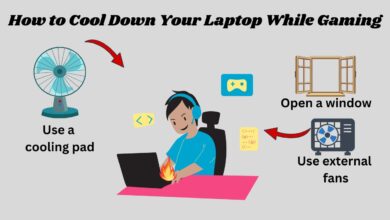
Gaming, video editing, 3D rendering, or running heavy software during charging generates a lot of heat. High-temperature charging is extremely harmful for lithium batteries.
What to Do Instead
- Charge first, then use for heavy tasks
- Use a cooling pad
- Keep the laptop on a hard, ventilated surface
Remember, heat is the #1 reason batteries degrade early.
4. Keep the Laptop Cool at All Times
To fully understand how to protect your laptop from overcharging, you must recognize the importance of temperature control. Overheating accelerates chemical aging inside the battery.
Good Cooling Practices
- Clean vents monthly
- Avoid using laptops on beds or blankets
- Use high-quality cooling pads
- Keep fans dust-free
5. Use Original Chargers & Avoid Cheap Third-Party Adapters
Your charger regulates voltage. A low-quality adapter can send inconsistent or unsafe current, leading to:
- Overheating
- Voltage spikes
- Battery swelling
- Permanent battery damage
Always choose original or certified chargers.
6. Use a Surge Protector for Safe Charging
Power fluctuations are common, especially in countries with unstable electricity. A sudden voltage spike can instantly damage your battery.
Why Surge Protectors Are Important
- Prevent short circuits
- Regulate voltage
- Protect both the battery and motherboard
7. Enable Battery Saver Mode To Reduce Charging Cycles
Battery Saver lowers power consumption, meaning your laptop charges less often. Fewer charging cycles = longer battery lifespan.
Windows Steps
Go to:
Settings → System → Power & Battery → Battery Saver
This improves battery performance and reduces stress during usage.
8. Avoid Charging Overnight
Leaving your laptop plugged in overnight forces it to stay at 100%, which keeps it under voltage pressure for hours.
Why You Should Stop Overnight Charging
- Causes overheating
- Deteriorates battery chemistry
- Reduces long-term capacity
- Encourages battery swelling
Using charging limit tools can help avoid this problem.
9. Keep Your System Updated
Updates often include battery optimization improvements. Manufacturers refine battery control algorithms frequently.
Update Regularly
- BIOS
- Power management drivers
- Laptop management apps
This helps the system control charging more safely.
10. Store Your Laptop at Safe Battery Levels
If you won’t use your laptop for several days or weeks, store it at 40%–60% battery. This prevents long-term chemical breakdown.
Storage Tips
- Shut down the laptop
- Keep in a cool place
- Avoid full charge or full discharge
Advanced Tips to Protect Laptop Battery Health
For users who want deeper control, here are bonus methods:
Disable Fast Charging (if available)
Slower charging reduces heat.
Calibrate your battery every 2–3 months
This helps reset battery readings.
Keep your charger clean
Dusty or damaged ports may cause heat and voltage issues.
Avoid harsh temperatures
Batteries hate extreme cold and heat.
All these tips contribute to a better understanding of how to protect your laptop from overcharging in real-world usage.
FAQs – How to Protect Your Laptop from Overcharging
1. Can overcharging damage a laptop battery?
Yes. Although modern laptops have protection, constant high voltage and heat reduce battery lifespan significantly.
2. Is it okay to keep my laptop plugged in all the time?
Not recommended. It causes heat buildup and accelerates battery aging.
3. What battery percentage is best for long life?
Keeping your battery between 20% and 80% is ideal.
4. Do charging limit settings really help?
Absolutely. Limiting the charge to 80% can increase battery lifespan by up to 200%.
5. Should I game while charging?
Avoid it. Heavy tasks generate heat, which damages battery cells.
6. How often should I calibrate my battery?
Once every 2–3 months.
7. Can I use any third-party charger?
Only high-quality, certified chargers should be used.
8. Is overnight charging safe?
It’s safe for the system but harmful for long-term battery health.
9. Does temperature affect charging?
Yes. Heat is the biggest enemy of lithium batteries.
10. How do I check if my laptop supports charging limits?
Check your laptop brand’s official battery management app or BIOS settings.
Conclusion
Protecting your laptop battery is not difficult, but it requires consistent habits. By learning how to protect your laptop from overcharging and applying the methods discussed—like setting charging limits, avoiding overnight charging, keeping your laptop cool, and using original chargers—you can significantly extend your battery’s lifespan. Modern laptops may have built-in protection, but voltage pressure, heat, and continuous full-charge levels still damage battery health over time.
By following these practical tips, you ensure better performance, longer battery life, reduced heat, and a safer charging experience. With proper care and smart charging practices, your laptop will remain reliable and efficient for years.