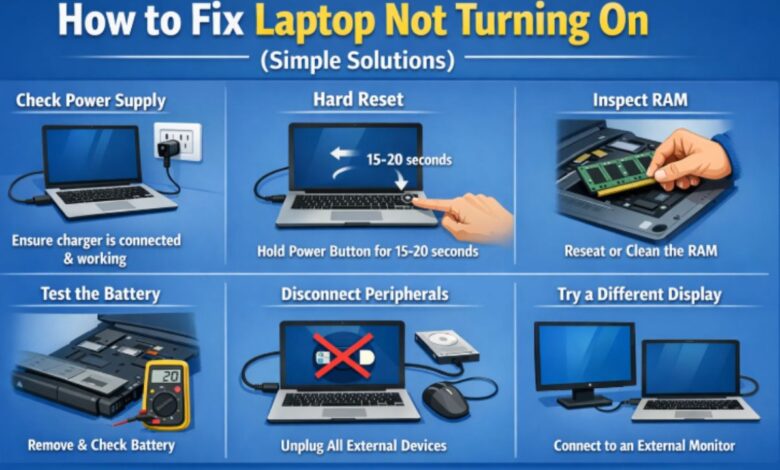
How to Fix Laptop Not Turning On (Simple Solutions)
Fix Laptop Not Turning On (Simple Solutions)

A laptop that refuses to turn on can be frustrating and stressful, especially when you urgently need it for work, study, or personal use. Many users immediately assume the laptop is dead or needs expensive repairs. However, in most cases, the problem is minor and can be solved at home. This detailed guide explains how to fix a laptop not turning on using simple, safe, and practical solutions that anyone can follow without technical expertise.
Common Reasons Why a Laptop Won’t Turn On
Before learning how to fix a laptop not turning on, understanding the possible causes helps you diagnose the issue faster.
- Battery completely drained
- Faulty charger or power cable
- Loose internal hardware
- Static electricity buildup
- The screen is working, butthe display is not showing
- Overheating protection shutdown
- Corrupt BIOS or system failure
- Damaged power button
- Motherboard issues
Many of these issues can be resolved without visiting a repair shop.
1. Check the Power Source and Charger
The first and most important step in how to fix a laptop not turning on is checking the power supply.
What to do:
- Plug the charger into a different wall socket
- Check if the charging LED light turns on
- Inspect the charger cable for cuts or bends
- Try another compatible charger if available
If the laptop turns on with a different charger, your original adapter is faulty.
2. Perform a Hard Reset (Power Reset)
Static electricity buildup can prevent the laptop from powering on. A hard reset clears this issue and is extremely effective.
Steps:
- Turn off the laptop
- Unplug the charger
- Remove the battery (if removable)
- Press and hold the power button for 30–40 seconds
- Reinsert the battery
- Plug in the charger
- Try turning on the laptop
This step alone fixes many cases where users search for how to fix a laptop not turning on.
3. Check If the Laptop Is Actually On (Black Screen Issue)
Sometimes the laptop is running, but nothing appears on the screen.
Signs:
- The power light is on
- Fan noise is audible
- Keyboard backlight turns on
Try this:
- Increase brightness using keyboard keys
- Connect an external monitor or TV using HDMI
- Press Windows + Ctrl + Shift + B to reset graphics
If the external display works, your laptop screen or cable may be faulty.
4. Remove External Devices
Connected devices can sometimes block the boot process.
Disconnect:
- USB drives
- External hard drives
- Mouse and keyboard
- Memory cards
- Printers
Then try turning on the laptop again. This simple trick often helps users trying to learn how to fix a laptop not turning on.
5. Let the Battery Charge Properly
If the battery is completely drained, the laptop may not respond immediately.
What to do:
- Plug in the charger
- Leave the laptop charging for 30–60 minutes
- Do not press the power button repeatedly
- Try turning it on after charging
If the battery is old, it may need replacement.
6. Check for Overheating Shutdown
Laptops automatically shut down to protect hardware when they overheat.
Solution:
- Let the laptop cool down for 30 minutes
- Place it on a hard, flat surface
- Ensure air vents are not blocked
- Clean visible dust from vents
After cooling, try turning it on again. Overheating is a common cause when searching for how to fix a laptop not turning on
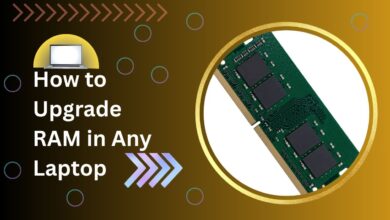
7. Reseat RAM (Memory Modules)
Loose RAM can prevent the laptop from starting.
If you are comfortable opening the laptop:
- Turn off and unplug the laptop
- Remove the back cover
- Take out the RAM
- Clean gently
- Reinsert firmly
- Close the cover and power on
This method works surprisingly well for laptops that show no display.
8. Check the Power Button
A damaged power button may not send the signal to start the laptop.
Signs of a faulty power button:
- No click feeling
- The button feels loose
- The laptop turns on only when pressed hard
If suspected, professional repair may be required.
9. Reset BIOS (If Accessible)
BIOS corruption can stop the laptop from turning on.
Try this:
- Press F2 / F10 / DEL / ESC while powering on
- Enter BIOS menu
- Select Load Default Settings
- Save and exit
This step is helpful when diagnosing how to fix a laptop not turning on caused by incorrect system settings.
10. Check Charging Port and Battery Health
A damaged charging port or a dead battery can completely stop power flow.
Look for:
- Loose charger connection
- Charging light flickering
- The laptop only works when the charger is held at an angle
If confirmed, port repair or battery replacement may be needed.
11. Try Booting Without the Battery
If your laptop has a removable battery:
- Remove the battery
- Plug in the charger
- Try turning on the laptop
If it turns on, the battery is faulty.
12. Listen for Beep Codes or LED Signals
Some laptops indicate hardware failure through beeps or blinking lights.
Check manufacturer guides to understand these signals. They help identify motherboard, RAM, or CPU issues.
13. When to Seek Professional Repair
If none of the above solutions work, the issue may be related to:
- Motherboard failure
- Power IC damage
- Short circuits
- Liquid damage
At this point, professional repair is recommended.
FAQs – How to Fix a Laptop Not Turning On
1. Why won’t my laptop turn on even when plugged in?
It could be due to a faulty charger, battery, or charging port.
2. Can a dead battery stop a laptop from turning on?
Yes, especially if the laptop does not receive enough power.
3. What if my laptop turns on, but the screen stays black?
It may be a display, graphics, or brightness issue.
4. Does overheating prevent laptops from turning on?
Yes, laptops shut down automatically to prevent hardware damage.
5. Should I open my laptop to fix it?
Only if you are confident. Otherwise, seek professional help.
Conclusion
Knowing how to fix a laptop not turning on can save you time, money, and stress. Most power-related issues are caused by simple problems like battery drain, static electricity, loose RAM, or faulty chargers. By following the step-by-step solutions in this guide, you can diagnose and fix the issue at home without professional help. Regular maintenance, proper charging habits, and keeping your laptop clean can also prevent such problems in the future.