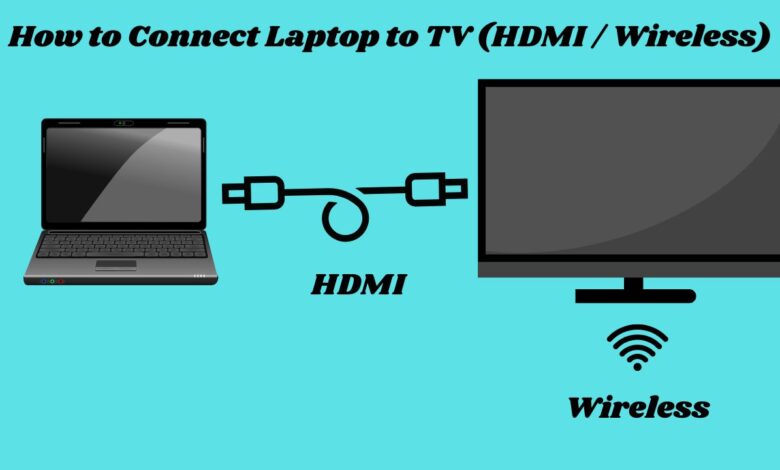
How to Connect Laptop to TV (HDMI / Wireless)
Connect Laptop to TV (HDMI / Wireless)

Whether you’re watching movies, playing games, attending online classes, or giving a presentation, knowing how to connect a laptop to a TV can enhance your experience by displaying content on a bigger screen. Many people prefer an HDMI cable for a quick and stable connection, while others enjoy wireless options for convenience and flexibility.
This article walks you through all the reliable ways to connect a laptop to a TV using modern devices and simple tools.
How to Connect a Laptop to a TV Using HDMI
HDMI is the most reliable, fastest, and simplest laptops to TVs. It delivers both audio and video without needing any extra configuration. If you want zero lag and the best picture quality, this method is ideal.
Step 1: Check the HDMI Ports on Your Laptop and TV
Before connecting, check ports.
Most Common Laptop Ports:
- Standard HDMI: Found on many Windows laptops.
- USB-C (Thunderbolt): Requires an adapter.
- Mini HDMI: Used in some older or compact models.
TV Ports:
Almost all modern TVs—Samsung, LG, Sony, TCL, Hisense, Panasonic—offer multiple HDMI ports.
If your laptop does not have HDMI, an adapter is the easiest solution.
Step 2: Connect the HDMI Cable
- Insert one end of the cable into your laptop.
- Insert the other end into your TV’s HDMI port (e.g., HDMI 1).
The cable should fit tightly on both sides. Avoid using damaged or loose they may cause flickering or no display issues.
Step 3: Select HDMI Input on TV
Use your TV remote and press:
- Source / Input
- Select the HDMI port you used (HDMI 1, HDMI 2, etc.)
Your TV should now show your laptop screen or a notification regarding the incoming HDMI signal.
Step 4: Adjust Display Settings on Your Laptop
On Windows:
Press Windows + P.
Choose one of the following:
- Duplicate – Shows the same display on both screens
- Extend – Turns the TV into a second display
- Second screen only – Only TV shows the content
On Mac:
- Open System Settings
- Select Displays
- Choose Mirror or Extend Display
This simple setup is what you need to connect a laptop to a TV using HDMI.
How to Connect a Laptop to a TV Wirelessly
Wireless methods are becoming more popular because they eliminate the need for cables and make the setup clean and flexible. Wireless options work great for presentations, streaming, browsing, and light gaming.
Let’s explore the best wireless methods.
1. Connect Laptop to TV Using Miracast (Windows Wireless Display)
Miracast is built into most Windows laptops and modern Smart TVs. It uses Direct technology, which means you don’t even need a router—just compatible devices.
Requirements:
- Both devices support Miracast
- Both devices are connected to the same Wi-Fi network
- Smart TV (Samsung, LG, Sony, TCL, Hisense, etc.)
Steps:
- Turn on Screen Mirroring / Miracast / Wireless Display on your TV.
- On your laptop, press Windows + K.
- A list of available displays will appear.
- Select your TV.
- Choose Duplicate or Extend display as needed.
Miracast is one of the simplest ways to connect a TV without an HDMI cable.
2. Connect Laptop to TV Using Chromecast
Google Chromecast is a small streaming device that displays and casts from your laptop.
It is one of the most reliable wireless technologies—especially for older non-Smart TVs.
Requirements:
- Chromecast plugged into the TV
- Laptop with Google Chrome browser
- Same Wi-Fi network for both devices
Steps:
- Connect the Chromecast to the TV’s HDMI port.
- Set up Chromecast via the Google Home app.
- Open Google Chrome on your laptop.
- Click the three-dot menu.
- Select Cast.
- Choose your Chromecast device.
- Select:
- Cast tab → Cast the current browser tab
- Cast desktop → Mirror entire laptop
- Cast file → Stream video/audio files
Chromecast is especially useful for streaming YouTube, Netflix (if supported), music, photos, and more.
3. Connect Laptop to TV Using Apple AirPlay (Mac Only)
Apple users can connect wirelessly using AirPlay, which works across Apple TV and many Smart TV brands.
Requirements:
- MacBook (AirPlay supported)
- Apple TV or AirPlay-enabled Smart TV
- Both devices are on the same Wi-Fi network
Steps:
- Open Control Centre on your Mac.
- Select Screen Mirroring.
- Choose your TV.
- Select Mirror Display or Use as Separate Display.
AirPlay is extremely smooth and reliable for Apple users wanting to learn how to connect a laptop to a TV without cables.
4. Connect Laptop to TV Using Wi-Fi Direct
Some Smart TVs offer Wi-Fi Direct, allowing laptops to connect directly without a router.
Steps:
- Enable Wi-Fi Direct / Screen Share / Cast on your TV.
- On the laptop, go to:
Settings → Devices → Bluetooth & devices → Cast -
Select your TV from the list.
Although not as smooth as Miracast, it’s a good backup method when no network is available.
Which Method Should You Choose?
| Purpose | Best Method | Reason |
|---|---|---|
| Gaming | HDMI | No lag, maximum performance |
| Movies | HDMI or Chromecast | HD quality, stable connection |
| Online classes | Miracast or AirPlay | No cables needed |
| Presentations | Wireless Miracast | Fast connection |
| Macbook users | AirPlay | Best compatibility |
| Older TVs | HDMI or Chromecast | Simple and universal |
Choosing the right method depends on your setup and usage requirements.
Troubleshooting: Common Issues and Solutions
1. TV Shows ‘No Signal’ via HDMI
- Check whether the HDMI cable is firmly plugged in.
- Try a different HDMI port on the TV.
- Try restarting the laptop.
- Update your graphics drivers.
2. No Sound on TV After HDMI Connection
- Right-click the sound icon on Windows.
- Select Playback Devices.
- Set HDMI Output / TV Speakers as default.
- On Mac, go to System Settings → Sound → Output, and select your TV.
3. Wireless Display Lag or Delay
- Use a 5 GHz Wi-Fi network instead of 2.4 GHz.
- Move the laptop closer to the TV.
- Close background apps that consume bandwidth.
- Restart the Wi-Fi router.
- For gaming and fast action movies, HDMI still performs better.
4. Laptop Doesn’t Detect TV for Wireless Display
- Check if both devices support Miracast or AirPlay.
- Reboot both devices.
- Update Windows or macOS.
- Make sure both are on the same Wi-Fi network.
5. HDMI Works, but Picture Quality Is Poor
- Use a High-Speed HDMI cable (Full HD or 4K).
- Adjust resolution:
Windows: Settings → Display → Resolution
Mac: Settings → Displays → Resolution - Use the correct aspect ratio on your TV.
Safety Tips While Connecting a Laptop to a TV
- Do not bend HDMI cables sharply; it may damage the ports.
- Avoid leaving HDMI cables under carpets or rugs.
- Place your laptop in a well-ventilated area to prevent overheating.
- Use original brand adapters (USB-C to HDMI) for stable performance.
- Disconnect the HDMI carefully to avoid loosening the TV port.
FAQs – How to Connect Laptop to TV (HDMI / Wireless)
1. What is the easiest way to connect a laptop to a TV?
Using an HDMI cable is the simplest and fastest method.
2. Can I connect my laptop to a TV without an HDMI?
Yes, wireless methods like Miracast, Chromecast, AirPlay, and Direct allow you to connect without cables.
3. My laptop is connected, but there is no sound on the TV. What should I do?
Change your audio output to HDMI in sound settings.
4. Does wireless display have a delay?
Yes, wireless display can have slight delays. HDMI eliminates lag.
5. Can I connect a MacBook to a normal TV?
Yes, either via HDMI adapter or AirPlay if your TV supports it.
6. Why is my TV not detecting my laptop?
Check cable connections, update software, restart devices, or try another HDMI port.
Conclusion
Knowing how to connect a laptop to a TV HDMI or wireless methods, gives you many advantages—whether you’re streaming movies, gaming, attending online classes, or giving presentations. HDMI offers the most reliable performance with no lag, while wireless options like Miracast, Chromecast, AirPlay, and Wi-Fi Direct provide flexibility and ease of use.