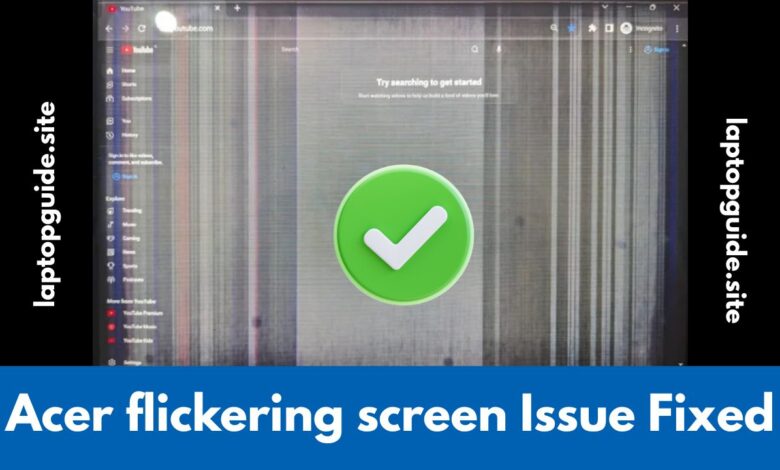
Acer Flickering Screen: Causes, Fixes, and Easy Solutions
Acer Flickering Screen

An Acer flickering screen is a common problem that many users face. It can happen suddenly and make your laptop difficult to use. The screen may blink, flash, or flicker continuously, which can cause eye strain and reduce productivity. This issue can appear while browsing, watching videos, gaming, or even on the desktop screen.
The good news is that in most cases, Acer laptop screen flickering can be fixed easily without replacing the laptop. In this guide, we will explain the main causes, simple troubleshooting steps, and effective solutions in clear and easy language.
For more laptop guides and troubleshooting tips, visit LaptopGuide.site.
What Is the Acer Flickering Screen Issue?
The Acer flickering screen issue occurs when the laptop display keeps flashing, blinking, or refreshing repeatedly. Sometimes the flickering happens randomly, while in other cases it appears only during specific actions such as opening apps or changing brightness.
Common flickering patterns include:
-
Entire screen flickering
-
Bottom of the screen flickering
-
Flickering when plugged into charging
-
Flickering only while gaming or watching videos
Understanding the pattern helps identify whether the issue is software-related or hardware-related.
Why Is My Acer Laptop Screen Flickering?
There are two main categories of causes behind Acer screen flickering:
-
Software-related causes (most common)
-
Hardware-related causes (less common but serious)
Let’s look at both in detail.
Software-Related Causes of Acer Screen Flickering
Software issues are responsible for most cases of laptop screen flickering Acer users experience.
1. Outdated or Corrupt Graphics Driver
An outdated or damaged display driver is the number one reason for screen flickering. When Windows cannot communicate properly with the GPU, the screen may flash or blink.
2. Incorrect Refresh Rate
If the refresh rate is set incorrectly, your screen may flicker, especially on older Acer laptops.
3. Incompatible Applications
Some applications conflict with Windows display settings and cause flickering. Antivirus software and system utilities are common examples.
4. Windows Update Issues
A recent Windows update can sometimes introduce bugs that affect display performance.
Hardware-Related Causes of Acer Screen Flickering
If software fixes do not work, the issue may be hardware-related.
1. Loose Display Cable
A loose internal display cable can cause intermittent flickering, especially when you move the screen.
2. Faulty Screen Panel
Over time, the laptop display panel itself may become faulty and start flickering.
3. Overheating
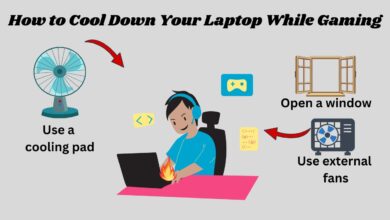
Excessive heat can affect GPU performance and cause display instability. Using proper airflow and accessories like laptop cooling pads can help reduce overheating issues.
4. External Monitor Problems
If you are using an external display, the flickering may be caused by a bad HDMI cable or monitor issue.
How to Fix Acer Flickering Screen (Step-by-Step)
Follow these steps in order. After each step, check if the flickering stops.
Step 1: Restart Your Laptop
A simple restart can fix temporary display glitches caused by background processes.
Step 2: Update Graphics Drivers
-
Right-click on Start
-
Open Device Manager
-
Expand Display adapters
-
Right-click your GPU and select Update driver
This step fixes most acer laptop screen flickering problems.
Step 3: Reinstall the Display Driver
If updating does not work:
-
Open Device Manager
-
Uninstall the display driver
-
Restart your laptop
-
Windows will reinstall the driver automatically
Step 4: Adjust Screen Refresh Rate
-
Go to Settings → System → Display
-
Click Advanced display
-
Set the refresh rate to the recommended value
Step 5: Disable Problematic Applications
Boot into Safe Mode and check if the screen flickers.
If flickering stops, uninstall recently installed apps.
Step 6: Check Windows Updates
Make sure your system is fully updated or roll back a recent update if the problem started afterward.
Step 7: Check Power Settings
Sometimes screen flickering happens only when charging.
Try using the original charger and check power settings.
Step 8: Connect an External Monitor
If the external display works fine, the problem is likely with your laptop screen.
Step 9: Reduce Overheating
Clean air vents and use cooling accessories. Excess heat can affect GPU stability during gaming or heavy tasks.
Step 10: Visit an Authorized Service Center
If none of the above steps work, the issue may be hardware-related and require professional repair.
Acer Nitro 5 Screen Flickering – Special Fixes
Many users report Acer Nitro 5 screen flickering, especially during gaming.
Common fixes include:
-
Updating NVIDIA or AMD GPU drivers
-
Disabling adaptive sync
-
Lowering in-game graphics settings
-
Improving cooling to reduce thermal throttling
For gaming-related hardware tips, you can explore guides on gaming laptop reviews.
Bottom of Screen Flickering on Acer Laptop
If only the bottom of the screen flickers, it is often caused by:
-
Loose display cable
-
Failing screen panel
-
Incorrect resolution scaling
Try adjusting display scaling in Windows. If the problem continues, professional repair may be required.
When Should You Visit a Service Center?
You should visit a service center if:
-
Flickering happens even in BIOS
-
External monitor works but laptop screen doesn’t
-
Screen flickering worsens over time
-
Physical damage is visible
Frequently Asked Questions (FAQs)
Is Acer flickering screen a serious problem?
Not always. In most cases, it is caused by software or driver issues and can be fixed easily.
Why does my Acer screen flicker only when charging?
This may be due to power settings, a faulty charger, or GPU power switching.
Can screen flickering damage my laptop?
Prolonged flickering itself does not damage hardware, but it may indicate underlying issues.
Is screen replacement necessary?
Only if the screen panel is faulty or physically damaged.
Final Thoughts
An Acer flickering screen can be annoying, but it is usually fixable with simple steps. Start with software solutions like updating drivers and adjusting display settings. If the problem continues, check for hardware issues or visit a service center.