Introduction
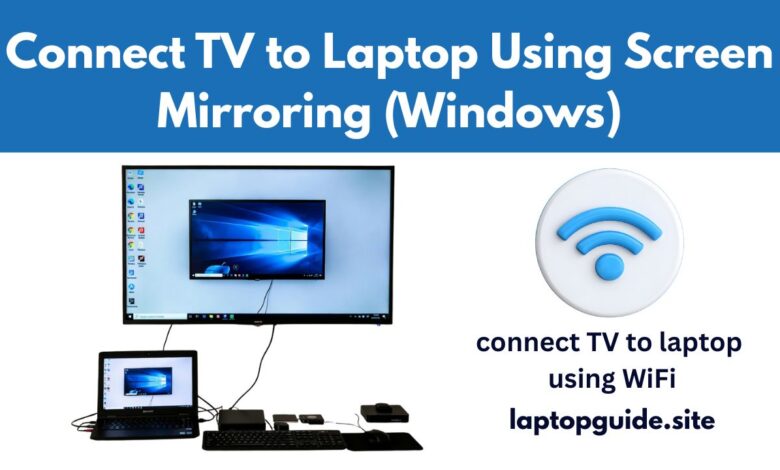
In today’s digital world, using a larger screen often makes work and entertainment more enjoyable. That is why many people want to learn how to connect TV to laptop using WiFi. A wireless connection allows you to watch movies, deliver presentations, or browse content on a big screen without dealing with cables.
Fortunately, modern laptops and smart TVs make wireless screen sharing easier than ever. In this guide, you will discover the most effective methods, explained in a simple and practical way.
Things to Check Before You Start
Before connecting your devices, it is important to confirm a few basics. This preparation helps avoid common connection problems later.
First, make sure your TV supports WiFi and screen mirroring.
Next, ensure that your laptop has wireless display or casting support.
Most importantly, connect both devices to the same WiFi network.
Once these steps are complete, you can choose any method below.
Method 1: Connect TV to Laptop Using Screen Mirroring (Windows)
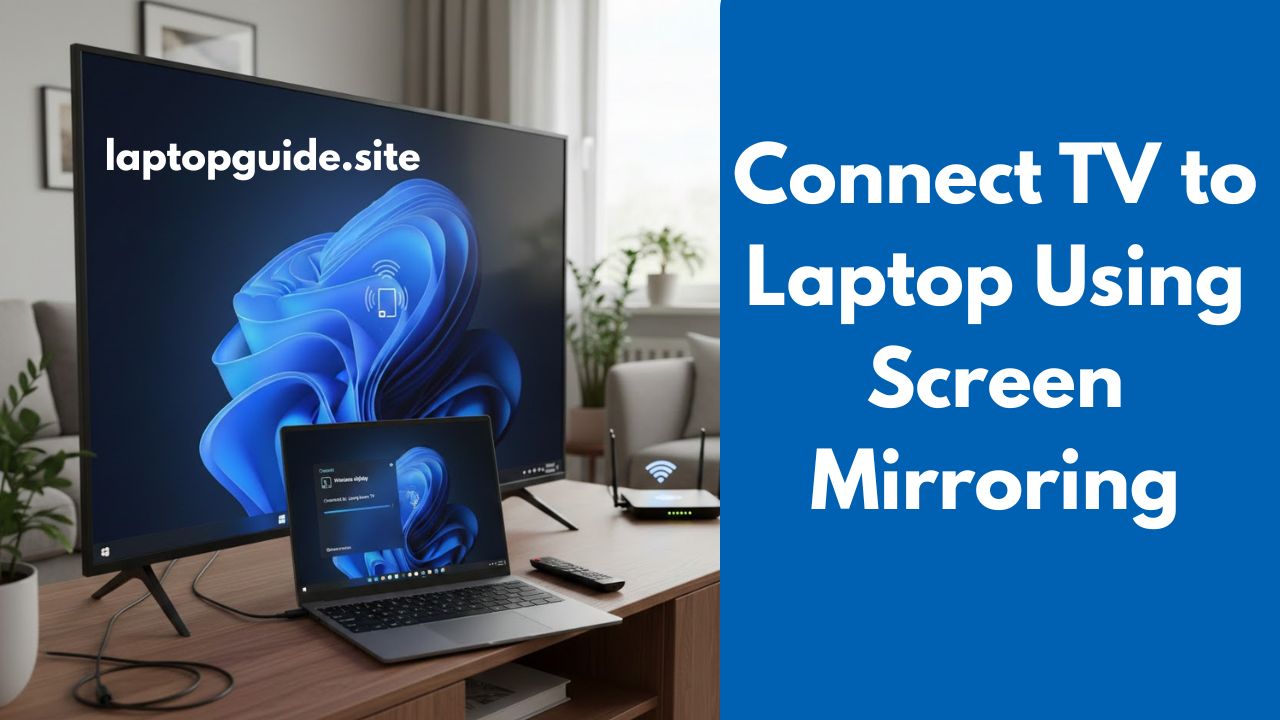
Most Windows laptops support a built-in wireless display feature known as Miracast. As a result, no extra software is usually required.
Steps to follow:
-
First, turn on your Smart TV and enable Screen Mirroring or Miracast.
-
Then, press Windows + K on your laptop.
-
After that, select your TV from the available device list.
-
Finally, wait a few seconds for the screen to appear on the TV.
In most cases, the connection is established instantly.
Method 2: Connect MacBook to TV Using AirPlay
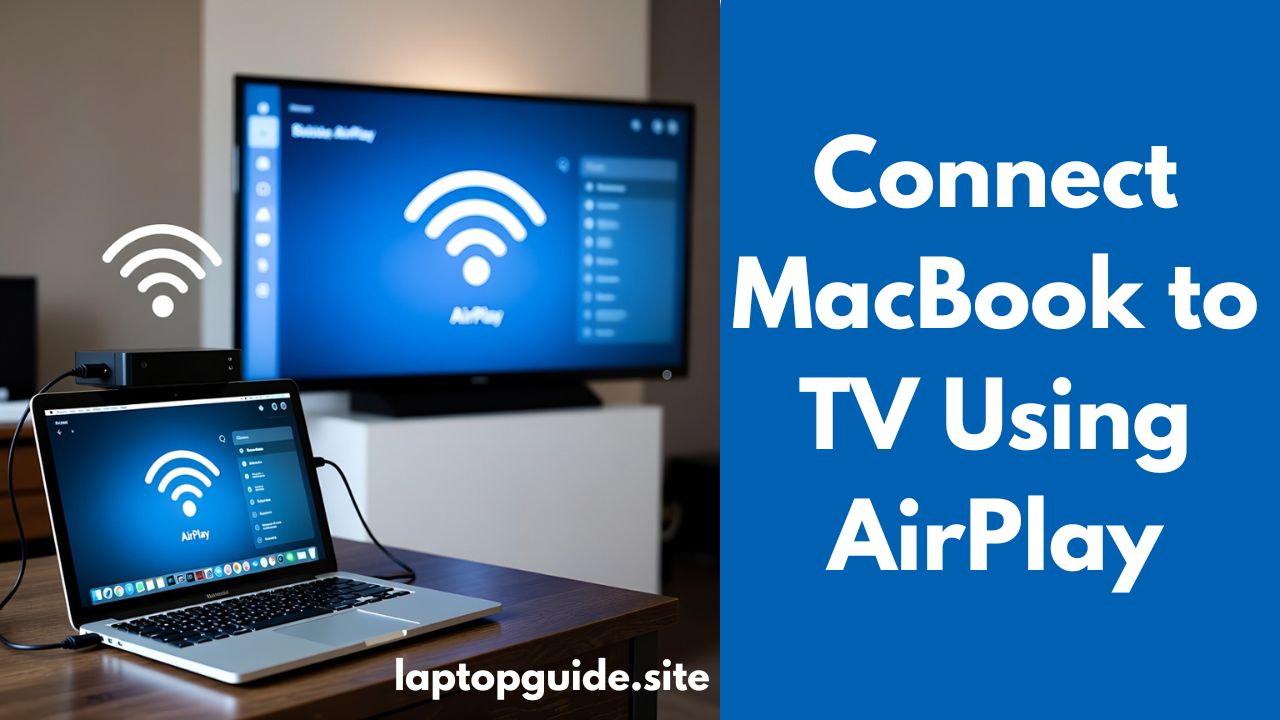
Apple users can take advantage of AirPlay, which offers a smooth and stable wireless experience.
To begin, ensure both devices are connected to the same WiFi network.
Next, click the AirPlay icon in the menu bar on your MacBook.
Afterward, choose your Apple TV or AirPlay-enabled Smart TV.
As a result, your MacBook screen will mirror on the TV.
This method works especially well for videos and presentations.
Method 3: Use Google Chromecast for Wireless Display
If your TV does not support built-in screen mirroring, Google Chromecast is an excellent alternative.
First, plug the Chromecast device into your TV.
Then, complete the setup using the Google Home app.
Next, open the Chrome browser on your laptop.
After that, click the three-dot menu and select Cast.
Finally, choose your TV to start screen sharing.
Because of its compatibility, this method works on both Windows and macOS.
Method 4: Connect Using Smart TV Apps
Many TV brands provide their own wireless screen-sharing solutions. Therefore, checking your TV’s built-in options is always a good idea.
| TV Brand | Screen Sharing App |
|---|---|
| Samsung | Smart View |
| LG | LG Screen Share |
| Sony | Screen Mirroring |
| Roku | Roku Screen Cast |
Once enabled, these apps allow you to connect your laptop wirelessly with minimal setup.
Common Issues and How to Fix Them
Sometimes, wireless connections do not work perfectly. However, most issues can be fixed quickly.
| Problem | Quick Solution |
|---|---|
| TV not detected | Check WiFi network |
| Audio missing | Change sound output |
| Screen lag | Close background apps |
| Connection drops | Restart devices |
In most situations, restarting both devices solves the problem.
Benefits of Connecting TV to Laptop Using WiFi
Wireless display offers several clear advantages. For example, it eliminates the need for cables and adapters. Additionally, it keeps your setup clean and flexible.
Moreover, WiFi connections are ideal for:
-
Watching movies
-
Online meetings
-
Classroom presentations
-
Casual browsing
As a result, wireless screen sharing is becoming increasingly popular.
When a Wired Connection Might Be Better
Although WiFi is convenient, it is not always the best option. For instance, gaming or high-resolution video editing may require zero delay.
In such cases, using an HDMI cable provides better stability and performance. Therefore, choosing between wired and wireless depends on your specific needs.
Conclusion
Learning how to connect TV to laptop using WiFi opens up many possibilities for work and entertainment. Whether you use screen mirroring, AirPlay, Chromecast, or brand-specific apps, wireless display technology makes screen sharing simple and efficient.
By following the methods explained above, you can enjoy a bigger screen experience without any cables—quickly and effortlessly.