In today’s digital world, laptop data is extremely valuable. Important documents, photos, videos, work files, and personal data can be lost at any time due to system failure, viruses, theft, or accidental deletion. Unfortunately, many users realize the importance of backups only after losing their data. That’s why understanding how to back up your laptop data safely is essential for every laptop user. This complete guide explains simple, secure, and effective ways to protect your data without technical difficulty.
Why Laptop Data Backup Is Important
Before learning how to back up your laptop data safely, it is important to understand why backups matter so much.
- Hard drive or SSD failure
- Virus or ransomware attacks
- Windows crash or corruption
- Accidental file deletion
- Laptop theft or physical damage
- Software installation errors
Without a backup, data recovery becomes expensive or impossible
Types of Laptop Data Backup Methods
There are several ways to back up data. Choosing the right one depends on your needs, budget, and data size.
Main Backup Types
- External storage backup
- Cloud backup
- System image backup
- Manual copy backup
- Automatic scheduled backup
Using more than one method is always recommended.
1. Backup Laptop Data Using an External Hard Drive
External hard drives are one of the most popular and reliable backup solutions.
How to do it safely
- Connect the external hard drive to your laptop
- Copy important folders (Documents, Desktop, Pictures)
- Paste them into the external drive
- Safely eject the drive after completion
This method is simple and works offline, making it ideal for large files.
2. Use a USB Flash Drive for Important Files
USB flash drives are useful for small but critical data, such as documents, resumes, and certificates.
Best practice
- Use branded USB drives
- Avoid cheap or unknown brands
- Keep duplicate copies
USB drives are portable, but should not be your only backup option.
3. Backup Data Using Cloud Storage
Cloud backup is one of the safest methods when learning how to back up your laptop data safely.
Popular Cloud Services
- Google Drive
- OneDrive
- Dropbox
Benefits
- Access data from anywhere
- Automatic syncing
- Protection from physical damage
However, always use strong passwords and two-factor authentication.
4. Use Windows Built-In Backup Tool
Windows provides built-in backup options that many users ignore.
File History Backup
- Open Settings
- Go to Update & Security
- Select Backup
- Turn on File History
- Choose a backup drive
This automatically backs up your files regularly.
5. Create a Full System Image Backup
System image backup saves your entire Windows system, including software, drivers, and files.
When it helps
- Windows crashes
- The system becomes unbootable
- Malware infection
You can restore your laptop exactly as it was.
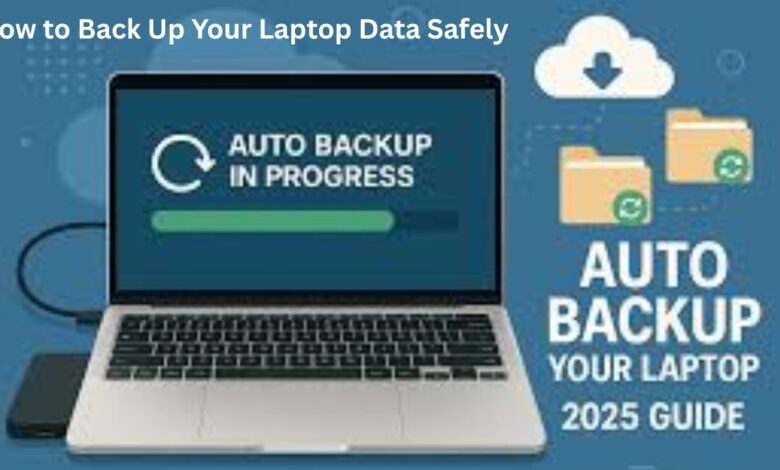
6. Schedule Automatic Backups
Manual backups are often forgotten. Automatic backups ensure continuous protection.
Recommended schedule
- Daily for important work files
- Weekly for general data
- Monthly full system image
Automation is a key part of backing up your laptop data safely.
7. Encrypt Your Backup Data
Backup files should also be protected from unauthorized access.
Ways to secure backups
- Password-protected ZIP files
- Encrypted external drives
- Encrypted cloud storage
This keeps your personal data safe even if the backup device is lost.
8. Follow the 3-2-1 Backup Rule
The safest backup strategy used by professionals is the 3-2-1 rule.
3-2-1 Rule Explained
- 3 copies of data
- 2 different storage devices
- 1 copy stored offsite
This strategy ensures maximum data safety.
9. Test Your Backups Regularly
A backup is useless if it cannot be restored.
What to test
- Open backup files
- Restore sample files
- Check backup completion
Testing is often ignored, but it is critical when learning how to back up your laptop data safely.
10. Avoid Common Backup Mistakes
Many users unknowingly put their data at risk.
Mistakes to avoid
- Using only one backup method
- Not updating backups regularly
- Storing backups on the same laptop
- Ignoring backup errors
Avoiding these mistakes ensures long-term data protection.
Which Backup Method Is Best for You?
| User Type | Recommended Backup |
|---|---|
| Students | Cloud + USB |
| Office Users | External HDD + Cloud |
| Freelancers | Automatic + System Image |
| Home Users | External HDD + File History |
Using multiple methods provides better safety.
FAQs – How to Back Up Your Laptop Data Safely
1. How often should I back up my laptop data?
Important files should be backed up daily or weekly.
2. Is cloud backup safe?
Yes, when strong passwords and encryption are used.
3. Can I back up without internet?
Yes, using external drives or USB devices.
4. Should I back up the entire system?
Yes, system image backups help during major failures.
5. What is the safest backup method?
Using multiple methods with the 3-2-1 rule is the safest.
Conclusion
Learning how to back up your laptop data safely is not optional anymore—it is a necessity. Data loss can happen anytime, but proper backups protect you from stress, financial loss, and productivity issues. By using external drives, cloud storage, Windows backup tools, and secure encryption methods, you can ensure your data remains safe at all times. Regular backups and smart strategies like the 3-2-1 rule offer complete peace of mind.