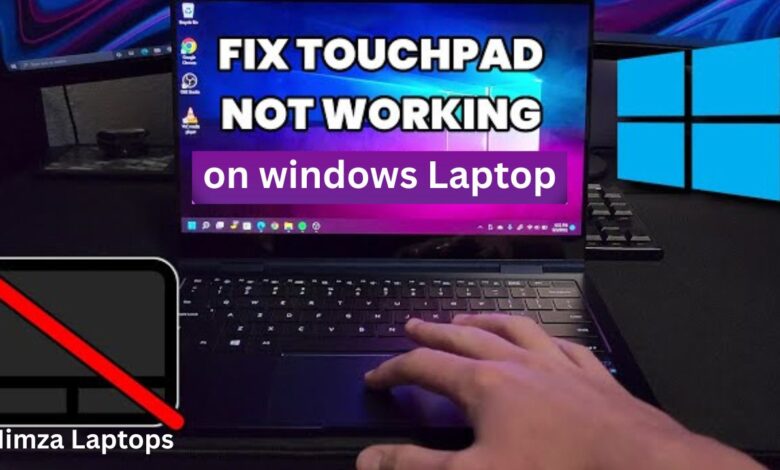
How to Fix Touchpad Not Working on Windows Laptops
Fix Touchpad Not Working on Windows Laptops

If your laptop suddenly stops responding to touch gestures, scrolling, or clicks, you’re not alone. Many Windows users face this annoying issue, and most of the time, the solution is simple. In this detailed guide, you’ll learn how to fix a touchpad not working on Windows laptops using practical steps that work for brands like HP, Dell, Lenovo, Asus, Acer, and more.
This guide covers all possible causes—software, drivers, settings, Windows updates, and hardware checks—so you can get your touchpad working smoothly again.
Why Is Your Touchpad Not Working?
Before you apply solutions, it helps to understand the common reasons behind the issue.
The touchpad not working problem may occur due to:
- Disabled touchpad settings
- Faulty drivers
- Outdated Windows version
- The external mouse is disabling the touchpad
- BIOS/UEFI settings
- Hardware damage
Fortunately, most issues can be fixed at home within a few minutes.
1. Enable Touchpad from Windows Settings
One of the most common reasons is that the touchpad is accidentally turned off. Therefore, the first step in how to fix a touchpad not working on Windows laptops is checking the settings.
Steps:
- Press Windows + I to open Settings
- Go to Bluetooth & devices
- Click Touchpad
- Ensure the Touchpad toggle is ON
- Also, ensure sensitivity settings are normal
2. Use Keyboard Shortcut to Enable Touchpad
Some laptops disable the touchpad through function keys.
For example:
- Dell → Fn + F3
- HP → Double-tap in the upper left corner of the touchpad
- Lenovo → Fn + F6
- Acer/Asus → Fn + F7
Look for a key with the touchpad icon.
Since key combinations differ, check your laptop manual or support page.
3. Update or Reinstall Touchpad Drivers
Outdated or corrupted drivers often cause the issue.
Updating them is one of the most effective ways to fix a touchpad not working on Windows laptops.
Steps to Update Drivers:
- Press Windows + X
- Select Device Manager
- Expand Mice and other pointing devices
- Right-click Touchpad / HID-compliant touchpad
- Click Update driver
- Choose Search automatically
If the update doesn’t work:
Reinstall Driver:
- Right-click the touchpad driver
- Choose Uninstall device
- Restart the laptop
Windows installs a fresh driver automatically.
4. Check for Windows Updates
Windows frequently updates input drivers and compatibility files.
Therefore, an outdated Windows version can cause touchpad malfunctions.
Steps:
- Open Settings
- Go to Windows Update
- Click Check for updates
- Install everything available
After installation, restart your laptop and test the touchpad again.
5. Disable External Mouse Override
Windows sometimes disables the touchpad when you plug in a USB mouse.
Steps:
- Go to Settings → Bluetooth & devices → Touchpad
- Turn OFF: Leave the touchpad on when a mouse is connected
This prevents accidental auto-disable.
6. Run Windows Hardware Troubleshooter
Windows includes a built-in troubleshooter that automatically finds and fixes touchpad issues.
Steps:
- Press Windows + R
- Type:
- Open Other troubleshooters
- Run the Keyboard, Hardware and Devices, and Bluetooth troubleshooters
These can fix touchpad conflicts and driver glitches.
7. Reset Touchpad Gestures & Settings
Sometimes custom settings interfere with normal operation.
To reset settings:
- Go to Settings
- Click Bluetooth & devices → Touchpad
- Scroll down and click Reset
This resets scroll, sensitivity, clicks, gestures, and multi-touch settings.
8. Check Touchpad in BIOS/UEFI
If the touchpad is disabled at the BIOS level, Windows cannot detect it.
Steps:
- Restart the laptop
- Press the BIOS key (F2, F10, F12, Esc, or Del)
- Look for Internal Pointing Device / Touchpad
- Make sure it’s enabled
- Save and exit
This often resolves the touchpad not being recognized by Windows.
9. Remove Any Touchpad Blockage or Dirt
This may sound basic, but sometimes:
- Dust
- Moisture
- Oil
- Debris
can block touchpad sensitivity.
Fix:
- Clean your touchpad with a soft microfiber cloth
- Avoid pressing too hard
- Ensure hands are dry
10. Test in Safe Mode
If your touchpad works in Safe Mode, a startup program or service is causing the problem.
Steps:
- Go to Settings → System → Recovery
- Click Advanced startup → Restart now
- Choose Troubleshoot → Startup Settings → Enable Safe Mode
If the touchpad works → uninstall the app that caused the conflict.
11. Perform System Restore
If the problem started after a driver update or app installation, restoring Windows can fix it.
Steps:
- Press Windows + R
- Type:
- Choose a restore point
- Complete the process
This brings back working touchpad settings.
12. Hardware Issue (When to See a Technician)
If none of the above solutions work, you may have:
- A damaged touchpad cable
- A faulty touchpad surface
- Motherboard connection issue
In this case, visit an authorized technician.
Touchpad replacement is usually affordable and quick.
FAQs – How to Fix Touchpad Not Working on Windows Laptops
1. Why is my laptop’s touchpad not working at all?
It may be disabled through Windows settings, BIOS, or keyboard shortcut. Driver issues can also cause complete failure.
2. How do I enable the touchpad again?
Go to Settings → Bluetooth & devices → Touchpad and make sure the toggle is ON. Also, try pressing your laptop’s touchpad shortcut key.
3. What if my touchpad disappears from Device Manager?
This usually means a driver issue. Run Windows Update, reinstall input drivers, or check BIOS settings.
4. Can a virus cause a touchpad malfunction?
Rarely, yes. Malware may block input devices. Running a security scan can help.
5. Does reinstalling Windows fix the touchpad?
If the issue is software-related, a clean installation can fix it. But try all other solutions first.
6. How do I know if it’s a hardware problem?
If the touchpad doesn’t work in BIOS or Safe Mode, it’s likely a hardware fault.
Conclusion
Learning how to fix a touchpad not working on Windows laptops is simple when you know the right steps. Whether the issue is caused by drivers, settings, or compatibility errors, the solutions above will help restore smooth touchpad functionality. If all software fixes fail, consulting a technician is the final and safest option.