How to Boost Gaming Performance on Low-End Laptops
Boost Gaming Performance on Low-End Laptops

If you often face lag while gaming, you are not alone. Countless players search for ways to improve FPS and reduce stutter. Learning how to boost gaming performance on low-end laptops is essential for smoother gameplay and better speed. Fortunately, there are many practical steps you can follow, and most of them are completely free. This guide will walk you through each method in detail, ensuring that you achieve stable performance and improved gaming quality without buying a new laptop.
1. Lower and Optimize In-Game Settings
One of the most impactful ways to improve performance is by adjusting your game’s graphics settings. Most low-end laptops struggle because the default settings are too high for their hardware. Lowering graphics instantly boosts FPS and reduces lag.
Settings You Should Lower Immediately
- Resolution: Switch from 1080p to 720p
- Texture Quality: Low or Medium
- Shadows: Low
- Anti-Aliasing: Off
- Effects and Particles: Low
- Render Distance: Reduce for open-world games
These adjustments significantly improve performance and are an essential part of how to boost gaming performance on low-end laptops
Features You Should Enable
- Vulkan or DirectX 12 (if supported)
- Dynamic Resolution Scaling
- DLSS / FSR (on supported games)
These technologies improve performance by balancing resolution and graphics load.
2. Update GPU Drivers Regularly
Drivers directly affect game performance, stability, and compatibility. Running outdated drivers is one of the most common reasons for low FPS.
Driver Update Links
- Intel HD/UHD Graphics: Intel Driver & Support Assistant
- AMD Radeon/ Vega: AMD Auto-Detect Driver Tool
- Nvidia GPUs: GeForce Experience
Up-to-date drivers ensure your hardware performs at its full potential, which is essential when learning how to boost gaming performance on low-end laptops.
3. Switch Windows to High-Performance Mode
Windows often reduces power usage to save battery, causing your laptop to run games slowly. Switching to the High Performance or Ultimate Performance plan increases CPU and GPU speed.
How to Enable It
- Open Control Panel
- Go to Power Options
- Choose High Performance
- If available, enable Ultimate Performance Mode
This simple tweak instantly improves responsiveness and boosts FPS.
4. Disable Background Apps and Startup Programs
Background applications consume RAM and CPU power. Closing these unnecessary apps can significantly improve performance.
Apps You Should Close
- Chrome or other heavy browsers
- Microsoft Teams, Skype, or Zoom
- OneDrive / Dropbox Sync
- Adobe Creative Cloud
- Antivirus scanning (temporarily during gaming)
How to Disable Startup Apps
- Press Ctrl + Shift + Esc
- Open Task Manager
- Go to the Startup tab
- Disable unnecessary apps
Removing background load is one of the most effective ways to boost gaming performance on low-end laptops.
5. Clean Dust and Improve Cooling
A laptop loses a large percentage of its performance when it overheats. Heat causes thermal throttling, and the CPU and GPU slow down to prevent damage.
Cooling Tips
- Use a cooling pad with strong airflow
- Clean dust from vents using compressed air
- Place your laptop on a hard surface, not a bed or pillow
- Apply new thermal paste (advanced but effective)
- Raise the rear side of the car for better airflow
Good cooling not only improves FPS but also increases laptop lifespan.
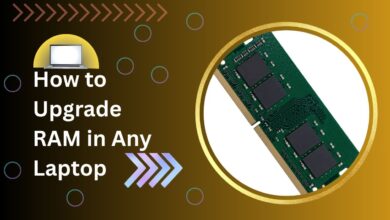
6. Upgrade RAM for Better Multitasking and Stability
Many low-end laptops still come with 4GB RAM, which is insufficient for gaming in 2025. Increasing RAM allows you to run games smoothly without freezing.
Recommended RAM Amount
- Minimum: 8GB
- Ideal for modern gaming: 16GB
More RAM reduces stuttering, improves loading, and helps with background processes. It’s one of the most reliable gaming performances on low-end laptops.
7. Upgrade to an SSD to Reduce Load Times
If your laptop still uses a hard disk (HDD), your games will load slowly, and your system will feel sluggish. Upgrading to an SSD dramatically boosts speed.
Advantages of an SSD
- Faster boot times
- Reduced in-game stuttering
- Shorter load screens
- Smoother open-world streaming
- Overall system speed improvement
Although an SSD doesn’t directly boost FPS, it heavily improves smoothness and reduces lag spikes.
8. Use Game Booster Software
Game booster tools close background apps, free RAM, and optimize system resources. They help low-end laptops achieve stable performance.
Recommended Game Boosters
- Razer Cortex
- Smart Game Booster
- MSI Afterburner (for monitoring + FPS overlay)
Game boosters are safe and effective; beginners boost gaming performance on low-end laptops without technical knowledge.
9. Undervolt the CPU (Advanced but Effective)
If your laptop overheats, undervolting can reduce temperature and prevent throttling.
Benefits of Undervolting
- Lower CPU temperature
- Higher sustained clock speeds
- Stable FPS
- Longer laptop life
Tools to Use
- ThrottleStop
- Intel XTU
This is optional but highly effective for gaming laptops that overheat frequently.
10. Consider Using an External GPU (eGPU)
If your laptop supports USB-C or Thunderbolt with GPU acceleration, you can connect an external graphics card.
Advantages
- Huge FPS boost
- Ability to play high-end games
- Future upgrade flexibility
Though not all laptops support eGPUs, this is the most powerful solution for players exploring how to boost gaming performance on low-end laptops.
11. Reduce Windows Visual Effects
Windows animations look good, but consume unnecessary resources.
How to Disable Them
- Go to System Properties
- Select Advanced
- Choose Performance Settings
- Select Adjust for Best Performance
This removes heavy animations and improves responsiveness.
12. Update Windows and DirectX
Outdated Windows versions or DirectX files can cause FPS drops and game crashes.
Benefits of Updating
- Better driver support
- Improved stability
- Enhanced compatibility
- Security patches
Keeping your OS games running efficiently.
13. Disable Fullscreen Optimizations
Windows adds extra layers of processing while handling full-screen apps. Disabling it often increases FPS.
How to Disable
- Right-click the game .exe file
- Choose Properties
- Open Compatibility
- Tick Disable Fullscreen Optimizations
This improves smoothness in many older games.
FAQs (Google Rich Snippet Ready)
1. How can I increase FPS on a low-end laptop?
Lower graphics settings, switch to performance mode, update drivers, and close background apps. Upgrading RAM and SSD also helps significantly.
2. Does RAM improve gaming performance?
Yes, upgrading RAM improves FPS stability and allows games to run smoothly without freezing.
3. Does an SSD increase FPS?
An SSD does not increase FPS directly, but it reduces loading times, stuttering, and improves overall gaming smoothness.
4. How can I stop my laptop from overheating while gaming?
Use a cooling pad, clean dust, elevate your laptop, and undervolt the CPU for lower temperatures.
5. What is the best performance mode for gaming on Windows?
The Ultimate Performance power plan provides the best speed and stability for gaming.
Conclusion
Boosting gaming performance on a low-end laptop is absolutely possible when you apply the right combination of settings, optimizations, and hardware upgrades. By lowering in-game graphics, updating drivers, improving cooling, and switching Windows to high-performance mode, you can achieve a noticeable increase in FPS. Additionally, upgrading RAM or switching to an SSD provides long-term improvements that make your entire system faster and more stable.
These steps ensure smoother gameplay, reduced lag, and better performance—even on older or budget laptops. With these simple tricks, you now fully understand how to boost gaming performance on low-end laptops and can enjoy your favorite games without a major investment.