Laptop overheating has become one of the most frequent issues among students, office workers, gamers, and freelancers. Heat not only slows down your device but also damages the battery, processor, and internal components. Because of this, thousands of people search daily for how to fix laptop overheating problem at home without spending money on repairs. Fortunately, overheating can be controlled and reduced significantly through simple cleaning, proper usage habits, and basic system adjustments.
Why Do Laptops Overheat?
Before learning how to fix laptop overheating problem at home, it’s important to know what causes heat buildup. The most common reasons include:
✔ Dust blocking the cooling vents
Dust is the number one reason laptops overheat. It blocks airflow, traps heat, and stops the fan from rotating freely.
✔ Using laptop on soft surfaces
Beds, pillows, blankets, and sofas block vents and prevent air circulation.
✔ Old thermal paste
Thermal paste dries over time, reducing heat transfer from the CPU and GPU.
✔ Heavy background programs
Too many apps running simultaneously overload the processor.
✔ Faulty cooling fan
A slow, damaged, or noisy fan cannot cool your laptop effectively.
✔ High room temperature
Heat from the environment affects computer temperature as well.
✔ Malware and viruses
Malicious programs run continuously and overuse CPU resources.
Because these causes build up over time, consistent maintenance is essential.
How to Fix Laptop Overheating Problem at Home – Step-by-Step Solutions
Below are the most effective, safe, and easy ways to fix and prevent laptop overheating without professional help.
1. Clean Laptop Air Vents and Fans
Cleaning vents is the most powerful method for users learning how to fix laptop overheating problem at home. When dust blocks ventilation, heat gets trapped inside, and the laptop heats up within minutes.
How to clean vents safely at home:
-
Turn off the laptop and unplug the charger.
-
Use a small brush or camera blower to remove dust.
-
Clean the side vents, back vents, and bottom vents.
-
Avoid using large vacuum cleaners directly on vents.
If the heating issue is caused by dust, cleaning will reduce temperature immediately.
2. Use Your Laptop on a Hard, Flat Surface
Never use your laptop on:
-
Bed
-
Blanket
-
Pillow
-
Sofa
-
Carpet
Soft surfaces block airflow and make overheating worse. Instead, always use:
-
A table
-
A wooden board
-
A laptop stand
-
A cooling pad
Better airflow = lower temperature + better performance.
3. Replace the Thermal Paste (If Possible)
Thermal paste transfers heat from the processor and graphics chip to the heatsink. Over time, it becomes dry and loses effectiveness.
This is one of the best long-term solutions for users serious about how to fix laptop overheating problem at home, but it requires basic technical experience.
If you are not comfortable opening the laptop:
You can take it to a technician for thermal paste replacement. It is inexpensive and very effective.
4. Close Heavy Background Applications
Overheating often happens because too many programs run at the same time.
To fix this:
-
Press Ctrl + Shift + Esc
-
Open Task Manager
-
Go to Processes
-
End tasks you don’t need
This reduces CPU load and lowers temperature within a few minutes.
5. Disable Startup Programs
Too many startup apps turn on automatically when booting your laptop. This increases workload and heat.
Disable unnecessary startup programs:
-
Open Task Manager
-
Click Startup Apps
-
Disable apps you don’t need (Spotify, Steam, Teams, etc.)
This improves both cooling and boot-up speed.
6. Check If the Cooling Fan Is Working Properly
A weak or damaged fan is one of the biggest heating causes. To check:
-
Place your hand near the vent
-
Feel whether air is coming out
-
Listen for grinding or unusual noises
If the airflow is weak or the fan is noisy, replacement may be required.
7. Lower Screen Brightness
High brightness produces more heat because the display consumes a lot of power. Reducing brightness to 50–60% can noticeably improve temperature.
8. Use Battery Saver or Power Efficiency Mode
Switching to power saver settings reduces CPU load and helps keep your laptop cool.
To enable:
Settings → System → Power → Power Mode → Best Power Efficiency
This mode extends battery life and reduces overheating, especially during long work sessions.
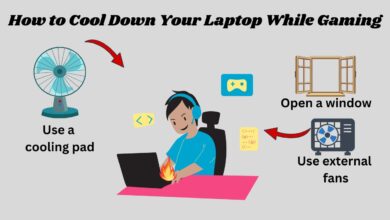
9. Use a Cooling Pad for Extra Airflow
Cooling pads are inexpensive and very effective. They redirect cool air into the bottom vents, reducing internal heat.
If you frequently use your laptop for:
-
Video editing
-
Online classes
-
Gaming
-
Long working hours
a cooling pad is extremely helpful.
10. Update Windows, Graphics Drivers, and BIOS
Old drivers cause unnecessary CPU and GPU usage, which leads to overheating.
Update your system regularly:
-
Go to Settings → Windows Update
-
Install all updates
-
Update GPU drivers (Intel, AMD, Nvidia)
-
Update BIOS from the manufacturer website
Updated drivers ensure optimal performance and lower heat generation.
11. Run a Malware Scan
Malware silently consumes CPU power, causing overheating. Run a full system scan using:
-
Windows Security
-
Malwarebytes (Free Version)
Removing malware can dramatically reduce CPU usage and heat.
12. Limit Heavy Software Usage
Heavy apps such as video editors, 3D software, and high-end games heat up the laptop quickly. Use them only when necessary or reduce graphic settings.
13. Avoid Using Laptop While Charging During Heavy Tasks
Using the laptop during charging, especially with games or editing software, produces extreme heat. This harms both the battery and the motherboard.
Best practice:
Charge → Unplug → Then perform heavy tasks
14. Change Power Plan to Balanced Mode
High-performance mode keeps your CPU running at maximum power all the time, which increases heat.
Switch to Balanced mode:
Control Panel → Power Options → Balanced
This small change lowers the temperature significantly.
15. Keep the Room Cool
If your room temperature is high, your laptop will naturally overheat faster. Using your laptop near a fan or in a ventilated area helps a lot.
FAQs – How to Fix Laptop Overheating Problem at Home
1. Is laptop overheating dangerous?
Yes, continuous overheating can damage the motherboard, SSD, battery, and fans.
2. Can dust cause overheating?
Yes, dust is the biggest reason for overheating because it blocks airflow.
3. How often should I clean my laptop vents?
Every 3–6 months depending on your environment.
4. Does a cooling pad really help?
Yes, cooling pads improve airflow and reduce temperature by 5–10°C.
5. Should I replace thermal paste?
Yes, if your laptop is older than 2–3 years, replacing thermal paste reduces heat significantly.
Conclusion
Learning how to fix laptop overheating problem at home is easy when you understand the causes and follow proper techniques. Cleaning vents, controlling background tasks, replacing thermal paste, adjusting power settings, and using hard surfaces can dramatically reduce heat. These simple steps not only fix overheating but also extend battery life, protect hardware, and improve overall performance. When maintained properly, your laptop will run smoother, cooler, and last longer.
Consistent care is the key. Apply these tips regularly to keep your laptop healthy and functional for years.